Wednesday, September 4, 2019

Solvent compressibility

Solvent Compressibility

Have you ever noticed pump ripple (baseline noise) that is not caused by a defective check valve ? The ripple might be due to an incorrect solvent compressibility setting.
We normally think of liquids as not being compressible in general. Hydraulic systems take advantage of this physical fact and many innovations have been developed using this concept. However, in high pressure liquid chromatography (HPLC) we routinely subject different liquids to very high pressures which can result in measurable liquid compression. The degree of actual compression varies for each liquid (see table). Though the amount of compression is very small, it is enough to change the flow rate of the system. When multiple solvents are mixed together at different proportions, such as is common when running a gradient, the measured flow rate can vary from the set flow rate during the entire run. This flow rate accuracy issue can be compensated for using the built-in solvent compressibility compensation software which is found in most modern HPLC systems. Many of these systems will allow you to manually enter the actual liquid compressibility values for each solvent (pump channel) used. This can result in better baseline stability and less pump noise. I would like to point out that the small improvement gained in performance is best implemented AFTER other major changes have been addressed first (i.e. such as fully degassing your solvents; filtering samples before injecting; selecting the best signal bandwidth and sampling rate values for your detector and insuring that your pumping system has received regular maintenance).
Note how Water has a compressibility value of ~ 46, but a very common solvent such as Methanol has a value of 120. These two are very different. *Most pumps are pre-set with a compressibility value of '100'. A 50/50 mixture of the two run isocratically might benefit from a manually edited compressibility value of 83 [(46 + 120) = 166 / 2 = 83)]. This is a best guess value as the best compressibility value for a mixture of liquids must be determined through actual experiments. Choose the value which results in the lowest pump pressure ripple and/or noise.
> Bill Letter, 01/16/11.
  • SOLVENT COMPRESSIBILITY VALUES TABLE
    SolventCompressibility (10-6 per bar)
    Water
    46
    Acetone126
    Acetonitrile96
    Benzene95
    Carbon Tetrachloride106
    Chloroform100
    Cyclohexane113
    Dichloromethane99
    Ethanol112
    Ethyl Acetate113
    Heptane140
    Hexane158
    Isopropanol100
    Methanol120
    Tetrahydrofuran97
    Toluene90
  • The values shown above are approximate and recorded at a temperature of 20C (Handbook of Chemistry and Physics #90). Various grades/purity of solvent may have different compressibility values so please verify the values of your own solvents before use.
source: http://www.hplctools.com/Tip_110_HPLC_Solvent_Compressibility_Values.htm

Wednesday, July 18, 2018

How to create SPL for ESI system from Bruker

1. Open ESI method. For example xxx.m
2. Open SPL editor and fill in the table
3. Save SPL file under a name. For example xxx_SPL.m
4. Close SPL editor
5. Save the ESI method to xxx_SPL.m

Monday, August 29, 2016

NCBI accession string parse rule for mascot changed sep 2016

According to NCBI, As of Sep 2016, NCBI parse rule for accession string will change to below.

">\([A-Z0-9.]\)"

Description string remain the same

">[^ ]* \(.*\)"


Tuesday, April 7, 2015

How to change and purge pumps

How to change solvent:
1. Start Chromeleon by double-clicking the icon below on the desktop

2. Right-click anywhere on Chromeleon to de-select "Monitor Only" and access HPLC functions. There should be no check-mark in front of "Monitor Only".


3. Set Eluent % of the pump to purge to 100%. For example, if pump B is to be purged, set B to 100% and press <return> key. 


4. Then click Purge On


5. The Purge On button is green when purge is in progress. It will run at 3 mL/min for 5 min.


Saturday, April 4, 2015

How to submit sample in toxtyper

How to use ToxTyper

1. Launch ToxTyper by clicking on toxtyper icon. 

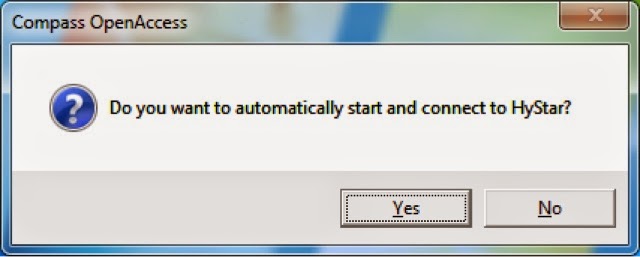
2. Answer "Yes" to "Start HyStar Automatically"


3. System access at Compass OpenAccess


4. Click on Queue Job(s)


5. Log in with user name and password then click "Next>". Now use demo.


6. Supply sample name (ID) and select Method for analysis (doa = drug of abuse, toxtyper = general, toxtyper QC = QC standard for instrument check)

7. Place sample vial on the specified position (R = Red, G = Green, B = Blue tray) , mark position and click Finish


8. The run will start 


Wednesday, April 1, 2015

Solvent Preparation for ToxTyper


Mobile Phase A (for 100mL):
  1. Water 97 mL
  2. ACN 1 mL
  3. 100 mM ammonium formate 2 mL
  4. Conc Formic acid 0.1 mL

Mobile Phase B (for 100mL):
  1. ACN 98 mL
  2. 100 mM ammonium formate 2 mL
  3. Conc Formic acid 0.1 mL

----------------------------------
Preparing 100mL of 100 mM ammomium formate
  1. Add 50 mL water to volumetric flask
  2. Add 381 uL of conc formic acid
  3. Add 747 uL of 25% ammonia
  4. Add water to make 100 mL
*** Rear Seal Wash solvent is 10 % MeOH

------------------------------------------------------
Calculation for preparing ammonium formate from ammonia and formic acid
1. formic acid density = 1.22 g/l
2. concentration in % = 98-100%
3. Molecular weigth = 46
Molar conc = 10*d*x/M = 10*1.22*99%/46 = 26.25 M

1. ammonia density = 0.91 g/l
2. concentration in % = 25%
3. Molecular weigth = 17
Molar conc = 10*d*x/M = 10*0.91*25%/17 = 13.38 M

For 100mL 100mM Ammonium formate (ratio = 1:1), use formic acid = 0.01 mol => 0.01 mol/26.25M = 0.381 mL; use ammonia = 0.01 mol => 0.01 mol/13.38M = 0.747 mL